 Web Hosting
  Website Design
  121 website builder template
  Domain name registration
 Logging in to your website
How to set your password and log into your 121 Technology website.
See this page for logging in to your Control Panel, for setting up emails etc
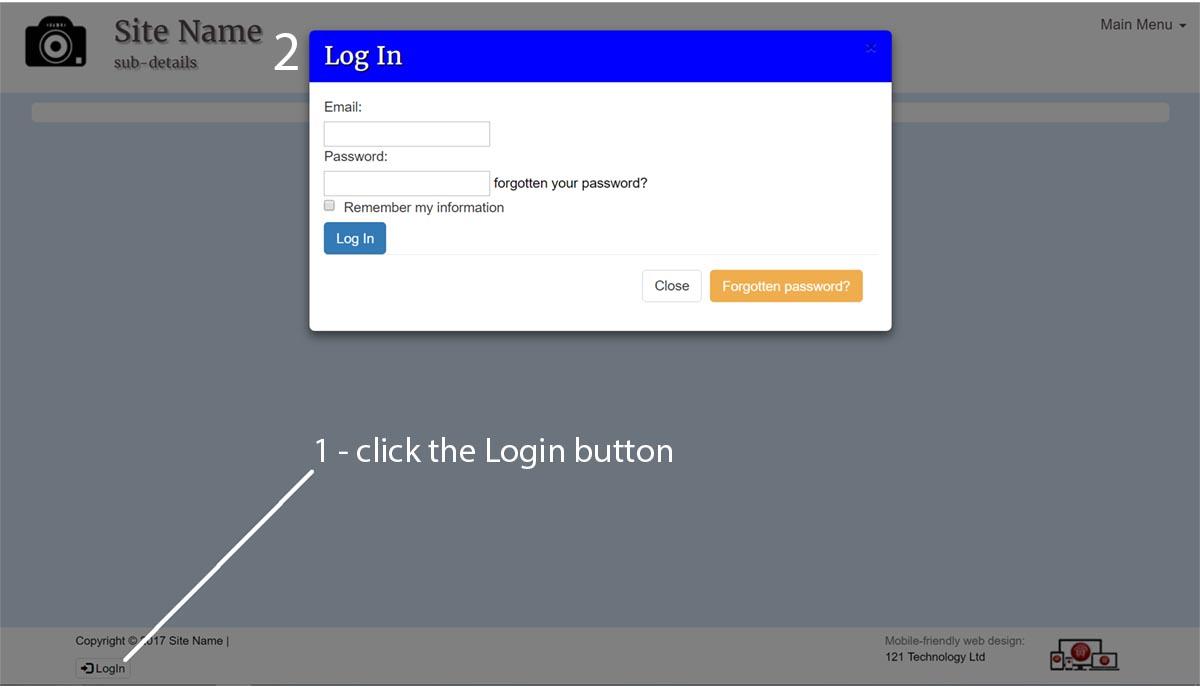
When you first go to your site, you will see a screen similar to that above (but not as dark). Note, the login modal is displayed AFTER the Login button (1) at the bottom of the screen has been clicked.
The login form is displayed (2). The first time you do this, you will need to set a password (you will already have been registered to use the site, with your email address).
Click the orange 'forgotten password?' button and the following page opens:
 Enter your email address,
The security code displayed on your screen (it is not case-sensitive).
Answer the security question.
Click the 'send' button.
An email containing a link to where you can reset your password will be emailed to you. The password you create is encrypted, so nobody can tell what it is. Passwords should be a mix of letters, numbers and symbols for greater security - if you forget it, you will need to follow the above process again (which you are able to do any time). Don't ask us what it is, as we can't see it!
Once you have set your password, you will be redirected to a login page. The fields are the same as shown in the login modal (2) above.
Enter your email address and password. To simplify things you may want to ask it to remember your details, do not do this if on a public computer.
Once you have successfully logged in, you can see links to create or edit pages, change the look of your site, advice about pictures etc.
See the Tutorials for help in using these features.