 Web Hosting
  Website Design
  121 website builder template
  Domain name registration
 adding pictures to your page
How to use the html editor to embed pictures in our page and how to wrap text around them.
You probably won't need to embed images in the page, as the 'main picture' and 'slideshow images' facilities provide a much easier solution and displays different sized images depending on the device being used (phone, tablet etc). However, if you do need to embed images, note that:
- images must be uploaded at the size you want them to display - you can't specify different dimensions once uploaded.
- images should be max 800px wide
To upload an image, click the 'Image button in the toolbar, shown below:
The 'Image Properties' window opens. Click on 'Browse Server'

A window similar to that below will open:
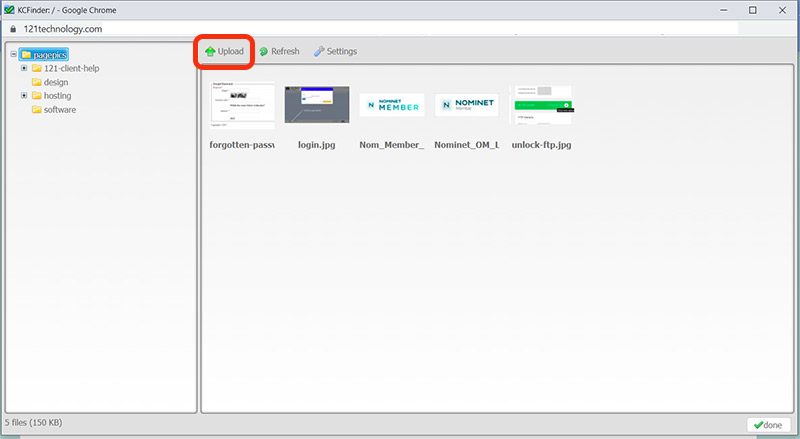
You must open the folder in which you want the file to be uploaded - you can't move files around within the file manager. Click the 'upload' button.
A window showing files on your computer is opened. Navigate to where the image you want to upload is stored, then double click on it to select and upload it.
When the upload is complete, the image will be displayed on the right of the file manager window above. Double click on this file.
The image properties window will now have the location of the image and show a part of the image as shown below.
 IMPORTANT - In the 'Alternative text' box (1), enter a description of the picture. This is essential for the page to pass W3C accessibility rules. It also helps with your search engine rankings, so make use of your keywords. For example, rather than writing 'dining room', use 'dining room at xyz holiday cottage' if your page is about xyz holiday cottage.
If you want to wrap text around the image, choose 'Alignment' (2) left or right.
When ready, click OK. You can double-click on the image should you want to alter the Alternative Text or Alignment in the future.
 Creating folders in the file manager