 Web Hosting
  Website Design
  121 website builder template
  Domain name registration
 Linking to other pages and uploading files
Use the html editor toolbar to create links to other sites on the Internet or to upload pdf's and other files
Files - .pdf, .doc, videos etc must be less than 2Mb, if they are larger, consider using YouTube for videos (or embed them in the page - see tutorial) or 'Yudu' for pdf files.
- if uploading a text only file, e.g. meeting minutes, you don't really need to be uploading a file anyway. Copy (Ctrl+C) and paste (Ctrl+V) the text into the body of a new page. Then people don't need to wait for an attachment to open.
- Convert Word files to pdf format if possible; many people can't open .docx, for example, whereas pdf is the standard file format for the Internet. (Also, information contined in a Word file, e.g. computer ame, network name, is hidden - though you can remove this information by saving in Word 2 format)
- As with pictures, use meaningful alphanumeric names with - or _ ONLY and try to avoid spaces in the filename. For example, website-download-form.pdf is good, p34(thf-6) ABC.pdf is bad!
Linking to a page on the Internet
To begin, click the 'Link' button in the toolbar:

The following small window open:
 In the 'Display Text' box 1, enter the text that you want to form the link, e.g. 'see this page x'
In box 2, enter the url of the page to which you want to link
Click 'OK' when finished.
Uploading a pdf (or other file)
Write some text that you want to be the link, for example 'pdf instructions' (or this can be entered in the 'Display Text' box below)
Highlight this text.
Click the 'create link' button, as above.
Click the 'Browse Server' button:
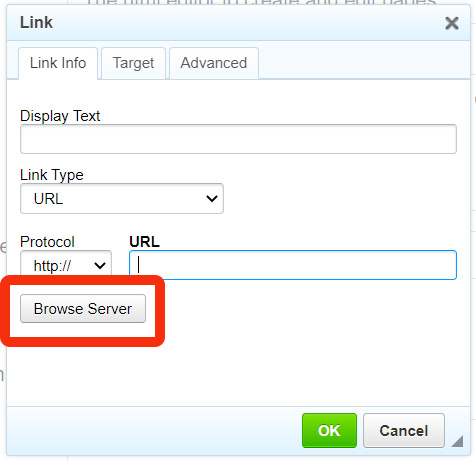
A window similar to below will open. On the left is the folder structure - you can add folders (see tutorial) if your site is likely to be large, with lots of images and files. On the right are any existing files in that folder. You must open the folder in which you want the file to be uploaded - you can't move files around within the file manager.
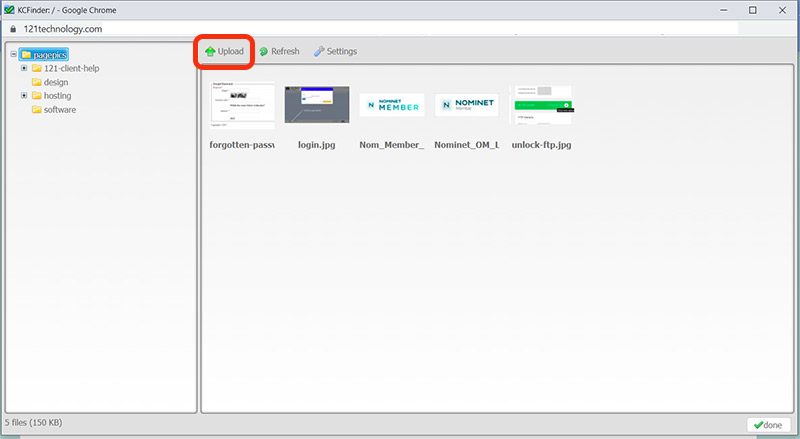
Above the existing files is an 'upload' link (highlighted in red in the image above). Click this.
A window showing files on your computer is opened. Navigate to where the pdf file you want to upload is stored, then double click on it to select and upload it.
When the upload is complete, the file will be displayed on the right of the file manager window above. Double click on this file.
The link url will now have the location of the file. Click OK.
The text you initially highlighted will now be a link to the pdf.
 Creating folders in the file manager