 Web Hosting
  Website Design
  121 website builder template
  Domain name registration
 Creating folders in the file manager
As your site grows, putting all your files and pictures in one folder slows the loading time. Plan ahead and create folders in the file manager.

On any update page, when you click on either the 'Link' or the 'Image' icons in the html editor, then 'browse server', the file manager opens.
The left of the window shows the folder(s) in your server space and on the right area the files within that folder. When starting, the file manager will be empty. The 'pagepics' folder is reserved for any files and pictures you want to add to your pages - any 'slideshow' or 'main pictures' are stored in a different location and can't be accessed.
To create a new folder, right-click on the folder on the left; a sub-menu appears, as shown below:

Select 'New Subfolder'. In the window that opens, type the name of the new subfolder. The name should be alphanumeric plus _ or - ONLY. So 2025pdfs is OK, but 2025pdf's is not!
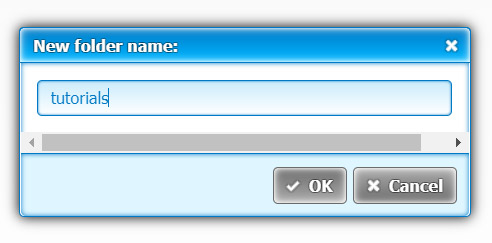
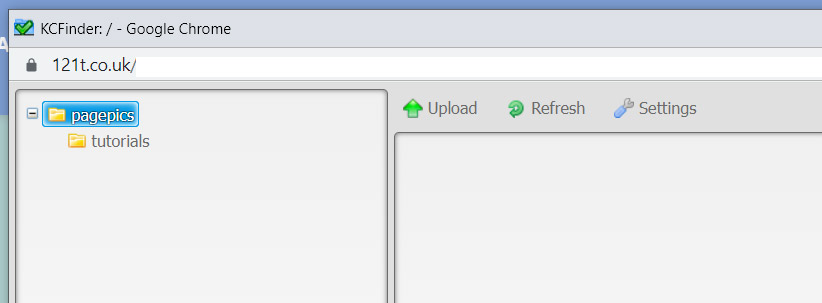
Once the name is correct, click 'OK'. You can see the new folder below 'pagepics', as shown below.
Repeat the process as required.
When you upload a file/image make sure you are in the desired folder before you upload.
Note - the more folders created, the longer it takes to open.
 Creating folders in the file manager